Wednesday, January 6, 2016

I'm Speaking at ISTE!


My session proposal to present at ISTE was accepted! I am so honored to be traveling to Denver to share my classroom stories with teachers from all over the world.  Here is a description of the session I will be teaching.

KinderTech: Tools for Integrating Technology in the Primary Classroom

Blogging, screencasting, concept maps , digital reaserach and social media...in Kindergarten? Why not? Learn how to use powerful digital tools to meet Common Core standards for ELA in the primary classroom. Explore tools created specifically for primary students to blog, create videos, screencasts, concept maps, and record podcasts.

Tuesday, November 24, 2015

K-1's POP with BrainPOP!


My very favorite educational resource has been BrainPOP.com since I began teaching in 2001. It started as a great site for showing quick videos to students that were always more interesting to them than listening to me. We used the quizzes to check comprehension from the movie and talk more about the topic. As the years passed BrainPOP improved their website to include games, a concept mapping tool, a tool teachers can use to create their own quizzes and an amazing sorting game called Sortify that has challenged both students and teachers more than once. Students can submit their work using the BrainPOP tools to their teachers through My BrainPOP. Teachers can assess student learning using spreadsheets, screenshots and authentic work submitted by their students. The options BrainPOP provides their teachers for differentiation and assessment are limitless.

I have spent the last year working closely with the BrainPOP  team to learn more about their website, how to use it effectively and all the work that goes in to producing it. I was lucky enough to help in their booth at the MEA/MFT teacher's confernce in Missoula in 2014. Then they invited me to be a part of a Professional Development Advisory Panel in New York City in 2015. That led to a collaboration with two amazing BrainPOP pros Cathie Gilner and Nili Bartly. We created training materials over the summer for BrainPOP to teach educators about how to use their tools for assessment. I even got to record a webinar using the materials we created. This fall I joined an online course so I could officially become BrainPOP cerified. While I was a CBE in my heart all along it feels good to carry legitimate credentials now. All of these experiences helped me to explore and use the webiste at a higher level. Each tool has been carefully developed by a team of experts aligned to standards and tested by teachers and students all over the world. I trust the BrainPOP site more than any other for quality content and creative approaches to instruction.

With all the love I have for the website, sadly I have not been able to use all of these features in my classroom because we have iPads and BrainPOP's flash heavy site could not load. This fall I have been sneaking across the hall to the second and third grade room to teach those students to use the site on the school's new Chromebooks. I would leave the room so excited about how the kids worked within the site creating concept maps and snap thoughts. While it was incredible to work with older kids and to be with my former students playing with tech just like old times,  I couldn't wait to do the same things with my own class.

My wishes came true this weekend when the new mobile friendly BrainPOP site went live!
Now subscribers can access the full BrainPOP site using ANY mobile device or computer. This was big news for me and my students. I cheered out loud on Sunday when I got the news.


We didn't waste any time getting our iPads set up to use the new BrainPOP. I got the first graders going with their usernames and passwords to MyBarinPOP. We began by taking a quiz I created using the quiz mixer about Thanksgiving. My smartie pants first graders even figured out how to use the speak selection tool on their iPads to have the quiz questions read to them. After the quiz they went right to the movie about Thanksgiving laughing out loud at Moby's beeps and Tim's jokes. They took another quiz and then began playing with the Make A Map tool. They needed very little instruction from me on this. I simply said, "this is like Popplet. Use these keywords and images to share what you have learned today." They went to town! Time was up before many of them could finish but they submitted their work and ran to recess telling each other how much they love the "new BrainPOP."  After recess we started our weekly Genius Hour. I showed them how they could search the BrainPOP site for videos about their topics. The room began to sing with Moby's beeps and Tim's voice. Every once in a while someone would look up and say, "Mrs. V, can I take a quiz?" "Mrs. V can I make a map?" It was just what I had been waiting for!


The most exciting part of our day yesterday was when one boy showed me his concept map about snakes. I noticed he had worked quietly and persistently on this map for most of our Genius Hour. He had several snake images on the screen and had begun labling nodes below the images with sentences about snakes. I was blown away by his stamina as he worked on the concept map. I was even more impressed by the sentences he had attempted to type on the screen. It really, truly brought tears to my eyes. This was a boy who does not typically verbalize his learning. Reading and writing has been challenging for him and yet using these tools he was able to start to share his learning. He was so proud of his work and read me his sentences. I am so blown away by the power of these BrainPOP tools after just one day of using them on our iPads. I can not wait to see what we will do next!

Tuesday, November 3, 2015

NCCE Conference in Seattle February 2016

I am proud to report that I will be presenting at the NCCE conference in Seattle this February!

Here is the description of my session!

Kinders Can And So Can You!

Session: WA30 | BYOD Workshop
WED, February 24 | 10:15 AM - 12:15 PM
Room: 400
Nikki Vradenburg | K-1 Teacher | LaMotte School, Bozeman, MT
Description:
Blogging, screencasting, concept map building, researching, collaborating and sharing with social media....in Kindergarten? First grade? It can be done! Come learn how one primary teacher uses a variety of technology including web tools and iPad apps to meet Common Core standards in Math and English Language Arts. Bring your favorite device and come ready to play!
Audiences:
Grades PreK-2
Grades 3-5
Teacher Librarians
Administration
IT Specialists
Expertise: All Levels
Strand: Tool showcase, Mobile Learning 1:1, Promising Practices
Software for BYOD: 
iPad apps: Explain Everything, Skitch, KidBlog, Popplet, Venn Diagram. Pic Collage, Brushes, SoundCloud, Voice Recorder Pro
Presenter Background: 
Nikki Vradenburg is a K-1 teacher at LaMotte School in Bozeman, Montana. She is a National Board Certified teacher, a PBS Digital Innovator and a member of the BrainPop PD Advisory Panel. Nikki has been teaching in the classroom since 2001, mostly in the primary grades. She also delivers Professional Development to teachers around the state of Montana in Gifted Education and Technology Integration. She serves on the board for the Montana Association for Gifted Education as the Technology chair and co-facilitates a support group for parents of gifted students for SENG, Supporting the Emotional Needs of the Gifted. Nikki lives in Belgrade, Montana with her husband and her two children.

 Click HERE to learn more about the NCCE conference.

Monday, March 30, 2015

My New Favorite Tech Tool for Writer's Workshop

Finding new technology tools to improve my classroom practice has become my new favorite past time. Nothing gets me more energized about teaching than implementing a new tool that makes my job as a K-1 teacher easier and more fun. This school year I have found a number of new tools and resources through my PLN on Twitter that have enhanced my classroom practice on so many ways from the way I teach to the way I assess. The newest of those tools is BrightLoop a digital conferring notebook for K-12 teachers to store their student observations and anecdotal records in a safe, secure environment. I instantly began using BrightLoop during writer’s workshop and was thrilled with the results!

I have used Lucy Calkin’s Units of Study in writing curriculum since the fall of 2013. I instantly fell in love with teaching writing in the writer’s workshop structure. My students began to write with confidence and stamina. It was wonderful to hear my students talking about their writing together in partnerships. It was even better to have the time to work with each of them one on one to talk about and plan their writing. These conferring sessions quickly became my favorite part of the writing workshop. I loved listening to my students read their writing and recording their strengths and growth areas. What I didn’t love, however, was the organization of my conferring notes--or should I say lack of organization? I tried using everything from sticky notes all over my desk to a large binder full of anecdotal notes that was very difficult to carry around the room from table to table. My notes were so disorganized they weren’t helping me plan my instruction or properly assess my students. I couldn’t find what I had written when I needed it.  I often had sticky notes stuck to the bottoms of my shoes as well. I had almost given up on recording notes from my writing conferences with students until I found BrightLoop. I was participating in a Twitter chat when a teacher posted a link to learn more about a tool teachers could use for recording student progress. I clicked on this link out of curiosity and was relieved to see what I had found. BrightLoop is a free, online, digital conferring notebook that is tablet friendly and easy to use. With BrightLoop on my iPad I easily walk from student to student and type my notes in a few simple screen touches. I can assign Common Core State Standards to my notes, write my lesson plans and even take photos of student work to save as a digital record of their progress.

I was hooked on BrightLoop from the beginning because it was so easy to use in the classroom. It complimented my conferring style perfectly. I was even more excited about it after I finished the first progress reports of the school year.  I got a call that my daughter was sick the day before progress reports were due. In a hurry to pick her up I scooped up the blank reports and rushed out the door thinking I would get them done while my daughter napped. Once I got her settled and she was napping I realized that it was going to be hard to do progress reports from home without any of my student work samples nearby. Then I remembered BrightLoop! I was able to access my conferring notebook on my home computer and get the progress reports done while my daughter napped beside me on the couch. Progress reports were complete and ready to go home with students the next day. I was so grateful that a digital copy of my notes was so accessible to me when I needed it. Since then, BrightLoop has expanded their mobile capabilities by developing an app for the iPhone as well! Now my notes are with me wherever I go! This comes in handy when a thought about one of my students’s writing comes to me while I am standing in line at the grocery store or waiting to get the oil changed in my car. Teachers never stop thinking about their students, right?

Now that I have BrightLoop conferring with my students and recording their progress during writer’s workshop is my favorite part of the day. It is such a relief to have a desk, and the bottoms of my shoes, empty of random post it notes and large binders that take to much space. I love that I can check my notes from wherever I happen to be when I need them. Have you used BrightLoop yet?

Monday, February 16, 2015

Storyboards on PBS Learning Media

I will be working with three phonics strategy groups this week in my classroom. I created storyboards with videos for theses three groups to watch during their iPad time in the Daily 5.

Group 1 is working on soft c and soft g words. I will be using these resources from PBS Learning Media to instruct them.

Two Sounds of C Interactive 
Keith's Word Across Worksheet

Two Sounds of G Interactive
Paul's Poster Puzzle Worksheet

When this group is not meeting with me they will use iPads to scan a QR code that takes them to a storyboard I created with six videos that teach them about the two sounds of c and g.

Soft C and G Storyboard

Group 2 is working on rhyming words and recognizing word families. I will use these resources on the Promethean Board from the Super Why website. They can be found on the PBS Learnig Media site as well.


Rhyme and Roll Game
Wonder Red Bingo

When this group is not working with me they will use iPads to scan a QR code that takes them to a story board with six videos that teach them more about rhyming words and word families.

Rhyming Words Storyboard

Group 3 is working on letter indentification. We will work together to practice visual phonics and go through some flash cards. When they are not working with me they will use iPads to scan a QR code that takes them to a storyboard with six videos that will expose them to alphabet letters and their sounds.

Letter Sounds Storyboard

They will also visit storyboards with videos about vowels, and songs about reading to keep them motivated to learn their letters.

Learn to Read Storyboard
Vowels Storyboard

I use www.qrstuff.com to create the QR codes. I insert these codes into a Google Doc and print it. Each student gets a copy of their code to scan when they work with iPads during Daily 5.

Thursday, December 4, 2014

PBS Digital Innovator Program

It has been such an honor to be one of the 100 teachers in America selected to participate in the 2014 PBS Digital Innovator program. I have had the pleasure of networking with some of the country's most innovative and imaginative teachers through social media platforms such as Edmodo, Twitter and Voxer. I also have learned to use amazing new tools during FREE monthly webinars about cutting edge practices in technology education. The greatest tool I have learned to implement into my daily lessons is the PBS Learning Media site. This website has over 87,000 resources for K-12 teachers covering all areas of content. I find something new and exciting each time I log in!

I was feeling disappointed that my year with the Digital Innovator program would come to a close in a few months but thankfully, once a Digital Innovator, always a Digital innovator! I get to continue the learning as an alumni and help future DI teachers spread the word about PBS resources! If you would like to join me in a professional development program like no other consider applying to be a part of the 2015 PBS Digital Innovator program. Read the information below and email me if you have more questions!

PBS is once again looking for America’s most innovative educators! 

Are you using digital media and technology to lead innovation in your school? Then apply now through 2/11/15 to be a 2015 PBS LearningMedia Digital Innovator! Whether you are flipping your classroom, integrating tablets and mobile devices, using game-based learning to engage your students and more, we want to hear from you.  Submit your application today for an opportunity to receive one year of FREE PD including virtual trainings, access to exclusive resources and events, membership into a robust professional learning community and an all-expense paid two-day trip to Philadelphia, PA preceding the ISTE conference!

The class of 2014 PBS LearningMedia Digital Innovators has been blowing us away and making headlines all year. Some of their accomplishments include:
Being named one of four finalists nationwide for National Teacher of the Year, including a meeting with the President of the United States
Presenting to a national audience of peers alongside PBS staff and other industry experts and thought leaders
And many, many more…

Don’t just imagine what opportunities the PBS LearningMedia Digital Innovators program has in store for you; take the next step and apply now through 2/11/15!


Saturday, October 11, 2014

MEA-MFT Conference 2014

I am headed to Missoula next week to participate in the yearly state teacher's conference MEA-MFT. I am excited to join fellow Montana teachers in this professional development opportunity. I am presenting three different sessions, two times each over the course of the two days. I am also working with the good people at BrainPop.com to share their website with the teachers of Montana. Brain Pop has been my go-to website for short classroom videos since I started teaching in 2001. I will work the booth with them in the vendor's area when I am not presenting. Stop by and say hello!

Here is a list of the sessions I will share in Missoula along with the Smore Flyers I will use to share resources

Thursday October 16 Sessions

I will be co-presenting these two sessions with my RESA4U and AGATE board colleague, Estee Aiken, from UM Western
10:00 AM-10:50 AM Differentiation in the K-8 Classroom
11:00AM-11:50 AM Differentiation in the K-8
Smore Flyer Resource Page "Differentiation"

I will present the following sessions on my own,
12:00-12:50PM Differentiation in the K-2 Classroom 
3:00-3:50PM Differentiation in the K-2 Classroom
Smore Flyer Resource Page "Differentiation in a Primary Classroom"


Friday October 17 Sessions

I will present these sessions on my own,
8:00-8:50 AM Technology Resources for the K-5 Classroom
2:00-2:50 PM Technology Resources for the K-5 Classroom
Smore Flyer Resource Page "Tech Savvy Teaching"


Saturday, October 4, 2014

Going 1:1 in K-1

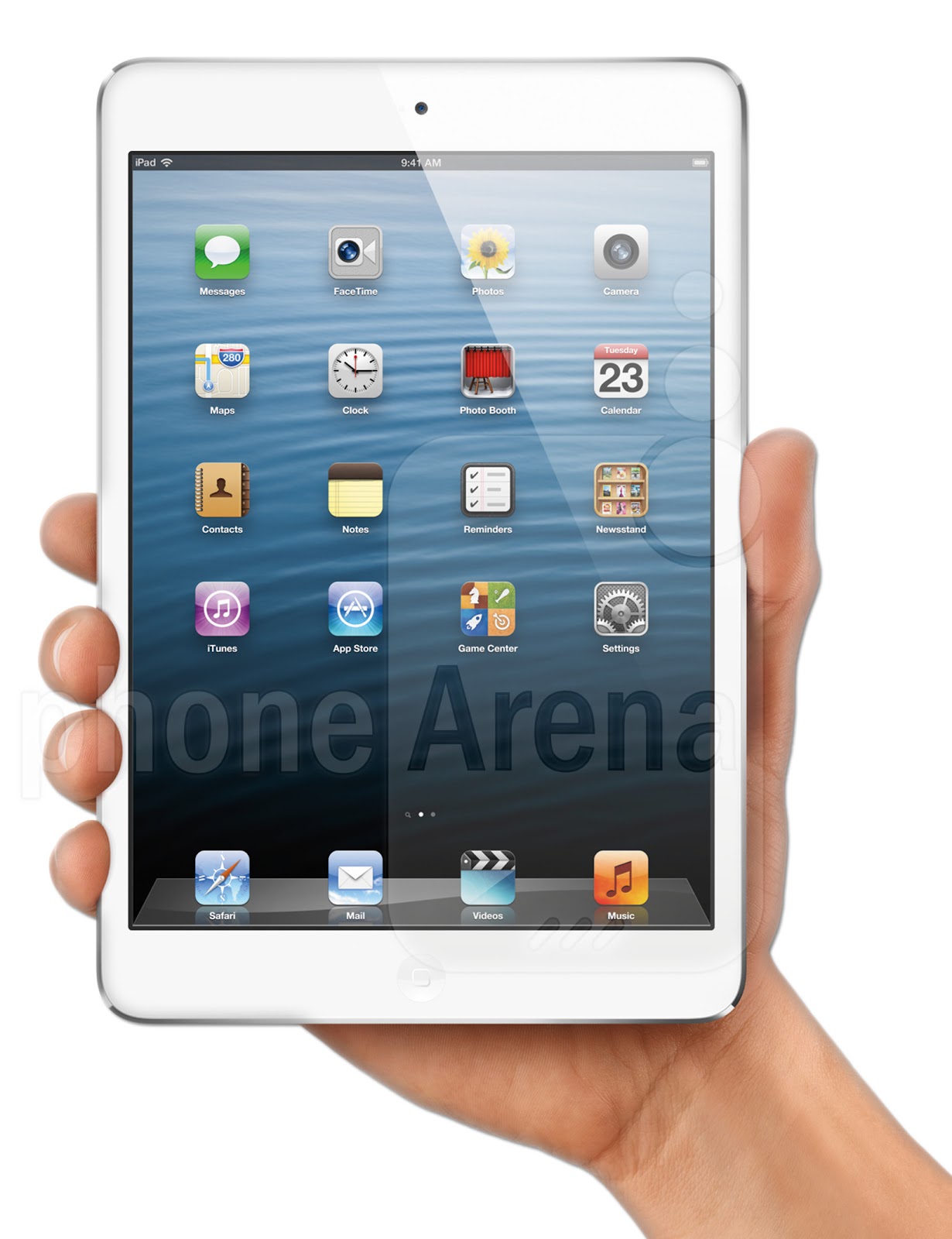
We started the school year with a class set of iPad minis and I can’t seem to stop smiling about it! It is so wonderful to have iPads in our room all day to use as we need them instead of worrying about signing up to use them during a set time of the day. It was tempting to just jump right in to using them all day long to blog, screen cast and create. I knew that was not realistic though so I focused our first month of school on teaching students to use the iPads and establishing routines for how to store and care for them. We have limited the number of apps available on the iPads at this time so the kids are not overwhelmed, also because it takes some time to load apps on 20 iPads! My focus for apps this month were content apps that allowed the students to practice skills in a game-based setting while they become comfortable with touch technology. I was surprised that while many students have access to iPads at home many of them still needed help with basic iPad functions such as opening and closing an app, putting the device to sleep and adjusting the volume.  We are still working on getting headphones plugged in and adjusting the volume once we do. We also have a set of 10 stylus pens I bought with a gift card from Amazon. (Note: always enter giveaway challenges on Twitter!) The stylus pens have helped students to use the iPads with more success if their little fingers weren't quite up to the task of operating some of the fine touches on the screen.

Here are the content apps my students are using on our class iPads

Endless Reader and Endless Number by Originator

These apps are engaging, easy to use and give students in K-1 lots of good practice reading and understanding sight words and numbers.

Keyboarding Without Tears
We have a subscription to this app purchased with our Handwriting Without Tears Handwriting program. Students practice letter recognition, formation and type on the touch screen. Eash student has a login and password and works at their own pace through lessons that get harder as they work. My students LOVE this app and choose it first most of the time.

Brain Pop Jr. Movie of the Week Brain Pop Movie of the Week

These apps feature short animated films about a variety of topics. We have subscription to the full site so I can login and allow students to watch a wide selection of videos.

We use these two tablet friendly websites to do Common Core aligned math lessons. First graders use Ten Marks and Happy Numbers. Kindergartners use Happy Numbers. Each iPad has a link to these pages on the home screen. All of my students have a user name and a password for these sites. I track their progress each week and send them assignments based on their performance and my lesson plans. I have their user names and passwords written on index cards. When it is time to use these programs I pass out the index cards and students log in themselves. They also have their log in information at home to do lessons there if they choose.

I introduced some creation apps to the students starting the second week of school. My first graders are very tech savvy and have been terrific tech teachers to the Kindergartners.  Here are the creation apps we have started to use in the order I introduced them.

Brushes

This is a painting app students can use to paint using several brush types, colors and textures. Their strokes are recorded as they work so they can go back and see a video of the strokes they used to paint.  Paintings can be saved to the camera roll for uploading to other apps. The stylus pens have made using this app even more fun for students as they can create pictures with more details than they could with their fingers.

I Nigma QR Code Scanner

I taught Kindergarten students to scan QR codes the second week of school so they would be able to listen to the books I have in our listening center. I have recorded myself and other teachers in our school reading a variety of picture books using the app, SoundCloud. I created a QR code for those recordings and taped them to the front of those books.


KidBlog

We use this app to write on our class blog. Each student has their own account. First graders are familiar with the blog from last year so they have been blogging since the first week of school. Together we are helping the Kindergarten students post photos of their work on the blog. Our tip for using KidBlog is to always take our pictures using the camera on the iPad before we login to the blog. We find the camera function does not work too well within the app.

Popplet
This graphic organizer tool is user friendly, colorful and offers a variety of tools ideal for young students. I taught Popplet last week and it was a huge hit. First graders assisted in helping the Kindergarten students use the draw tool, insert photos and text into a graphic organizer. I had them put a picture of themselves in the center bubble and connect three or four bubbles with drawings or photos of things they like.

Explain Everything
First graders are familiar with this app from last year so they have taken to using it again with very little instruction from me. We are finishing up our first Unit of Study in the Lucy Calkins writer’s workshop on “Small Moment Stories.” Students take pictures of each of the pages in their story, import them into Explain Everything and then record themselves reading their stories. I upload their screen casts to YouTube and insert them into our class blog.

Next week we will continue our work with Popplet, KidBlog and Explain Everything. I hope to teach Kindergartners to use Explain Everything this week as they publish their Teaching Books. My goal is to move away from the use of Content apps except for during our Daily 5 choice time. I hope to use the iPads primarily for blogging, creating and collaborating. While I see a place for content apps for practice and building on skills, I want my students to see the iPad as tool for showing mastery of the content rather than a device for playing games. I think we are well on our way!

Monday, August 11, 2014

InTECHgrated Conference

I am thrilled to be a presenter at the InTECHgrated teacher's conference being held in Bozeman, MT August 11, 12 and 13! This event is brought to the Gallatin Valley by RESA4U/Southwest Montana School Services and CSPD. Teachers from all over Montana are attending to get excited about the upcoming school year and to learn more about using technology in their classrooms.  I will be presenting three different sessions. Here is what I will be sharing,

Tuesday Morning
Growing Bloggers in the Primary Classroom
I will share my experiences with blogging with my K-1 class
Look and the Smore Flyer I made to list my resources!

Tuesday Afternoon
Apps for Common Core Math (Coding)
I am co-presenting with the great Jason Greenwald. We will talk about using coding apps with the students at our school and give teacher's an opportunity to try them.

Wednesday Afternoon
Tech Savvy Teaching
I will share my latest favorite apps and web tools
Take a look at the Smore Flyer I created to list my resources

I will get to attend one session Wednesday morning and I am really excited to see fellow Twitter teacher, Jessica Anderson present her work using Project Based Learning!

Monday, July 28, 2014

Tech Tools for Workshop Model Classrooms

I use the workshop model in my classroom for Reading, Writing and Math. I have found this to be the most ideal strategy for meeting with small groups and individuals throughout the day yet I struggle to find a system for recording the data I collect during my conferences. This summer I have been on the hunt for technology tools I can use to tighten up my record keeping and eliminate the waste and piles of files of sticky notes and legal pads. I found three tools recently on Twitter and Pinterest for keeping track of assessment data and recording anecdotal notes during conferences.

1. Bright Loop Learning

I found this tool on Twitter during the Western Montana Chat #westedchat. This tablet friendly web site gives teachers a tool for keeping individual student data. Set up your class with students, including their photos.  Use buttons to mark whether they are, "on track," or "need attention." Set a goal for each student and jot a note about a lesson you can teach to meet the goal. The Common Core State Standards are embedded into the website so you can enter notes for each student based on standards. You can also enter plans for when you will teach specific lessons to small groups, the whole group or individuals. This is a fairly new web site. I have found the creators and promoters to be very helpful and open to feedback. You can follow them on Twitter and Goolge Plus to learn more +BrightLoop @BrightLoop

My plan for this tool is to have it on hand when I meet with students for conferences in Reading, Writing and Math to record my notes, plans and goals for each student.

2. Record of Reading

I found this app on Pinterst in my daily feed of educational tools and recipes. I added it to my Tech Board. This is a free app for the iPad that allows teachers to take and analyze a running record. The screen looks just like a paper running record but the app will calculate and score the running record results for you. The app also allows you to record the student's reading as you are taking the record. This means we can go back and listen before we analyze and score the record. Another great feature of this app is that is estimates the reading level of the passage based on the information you enter. For example, I entered the Lexile number for a passage and the app provided the corresponding Fontas and Pinnel level. Once you enter the total word count for the passage you are using the app will calculate a a goal accuracy rate. You can take a photo and have it appear behind the space you are recording upon. This means you could take a photo of the text the student reads and annotate over it as they read. The User Guide for this app is extremely helpful as you begin to use it. A stylus is recommended for best results. There is even a built in line that can be pulled up and down which allows your rest your palm on the device while you are recording on the screen. Results of the running record can be saved in drop box or emailed.

I am reading The Literacy Teacher's Playbook by Jennifer Serravalo this summer. She recommends a running record as the most effective reading assessment. I am excited to use this app because the one hang up I've always had with taking running records is the time it takes to calculate the data. I put it off for when I have "more time." For some reason I never have the "more time" I need to sit down and do the math and then the running record does not help me plan my instruction.

3. Google Forms

Google forms is an easy and free web tool that allows teachers to set up a quick questionnaire linked to a spreadsheet displaying the data. I used a Google from last spring to collect parent volunteers for a field trip. I found the form to be much easier to send to parents than a paper request. Parents followed the link I shared with them and answered my questions. All their data came together on a spreadsheet automatically saved to my Google Drive. Now, I am thinking I will create Google Forms for the assessments I give to students so their results are compiled on one spreadsheet. This will make analyzing and planning with the data much easier.  There will be a form for me to fill out for each student with the following information,

Reading Form

Name
Grade
San Diego Quick Instructional Level
Six Minute Fluency Assessment
DIBELS Composite Score
Reading Accuracy
Sight Word List
Spelling Inventory Goal
Reading Comprehension Goal

Math Form

Name
Grade
Oral Counting
Number Identification
Missing Number
Fact Knowledge
Shape Recognition
Pattern Completion
Telling Time


I will set the form up so that the fields for each sub-test so I can enter anecdotal results. The spreadsheet with all of this data will give me a clear picture about the make up of my class and allow me to create strategy groups and plan instruction. This data will also be helpful during RtI meetings as I share my assessment findings with the RtI team. I am not sharing the forms here because they will be specific to my classroom and assessment tools. Also once, I open a form up to view it can be edited by anyone and that could make collecting my data a little tricky!

Check back later this fall to see how I used these tools! I would love to hear feedback in the comments section and suggestions for getting the most out of them!

Thursday, July 24, 2014

Reflections on ECET2 Montana

IMG_1650.JPG


I had the privilege of attending an incredible conference in Billings, Montana this week. ECET2 stands for Elevating and Celebrating Effective Teachers and Teaching. It is organized at a National level by the Bill and Melinda Gates Foundation. This Montana chapter was organized by Bozeman teacher and instructional coach Anne Keith. Keith wrote and earned a grant from the Gates foundation to organize ECET2 in Montana for teacher leaders. The Montana Educator’s Association and Montana Professional Teaching Foundation matched the grant funds and assisted Keith in promoting and holding the event for over 100 teachers in Montana. To read the Billings Gazette article published about the event CLICK HERE!


I received an invitation to attend ECET2 this spring. I was excited to see the phrase, “Lead without leaving the classroom” on the invitation. This is a topic near and dear to my heart as I have always felt called to lead in my field but could not bear the thought of giving up my students and our classroom. I put down the letter and went right to my computer to register. The conference was free to all participants and a $100 travel scholarship was awarded by MEA MFT. We also got seven OPI renewal units for attending.


IMG_1651.JPG
This “goodie bag” is my new favorite bag! Best teacher conference bag ever! It is professional and holds all of my devices! (and there are more than a few!)


IMG_1652.JPG
These may look like ordinary pens but they double as a Stylus for a tablet or smartphone! I scored TWO!


Conference Reflections: What did I learn and What will I Do Now that I Learned


My new goal for any and all professional development is to set aside time after the conference to reflect on what I learned and make a plan for how I will use the information. All too often I will attend a conference or a workshop and promptly forget everything I worked so hard to learn during the sessions.  Here is what I took from ECET2 and what I plan to do with it.


1. Global Competency


I attended a session delivered by a fellow National Board Certified teacher from Bozeman High School, Erica Schnee. I was inspired by Erica’s passion for instilling global competency in all students.  As I listened to Erica share her experiences I thought of the Mystery Skype session my class participated in last spring with a class in North Carolina. It was such a powerful lesson for my students in geography of our area and the rest of the country. I decided during Erica’s session that my goal for the upcoming school year will be to Mystery Skype as part of our Social Studies units. As we study our place in our community, state, country and world I will have my class Mystery Skype with a classroom in each of those. I also would like to set a goal to Skype with  as many states in the US and as many different countries as we can.  The other idea I took from Erica’s session was to share music from around the world weekly or even daily. She had music from New Zealand playing as we entered the room. It created a fun and lively atmosphere. I think students would love to enter the room each morning to a new song from a different country.  We could use a world map to locate the country for each song we listen to and keep track throughout the year. If I could find a way to have it overlap with our Mystery Skype sessions that would be even better!


2. Elevate Teacher’s Voices about the Montana Common Core Standards


The second session I attended was delivered by Allyson Hagen, communications director for Superintendent Denise Juneau and Sana Porte the communications director for MEA-MFT about the importance of teacher advocacy of the Montana Common Core Standards. Polling research shows that when voters are informed about the standards they are more likely to support them. More research shows that when teachers talk, voters listen. This did not surprise me but it was something I had not considered. I believe the Montana Common Core standards are good for kids and I am ready to start letting people know that. This session piqued my interest during Superintendent Denise Juneau's address to the group earlier that morning. She said, "The public trusts you to share your opinions about educational issues." Some of the suggestions we were given in the session that I plan to follow through with are,

1. Use social media to share good news about the MCCS I am an avid Twitter user and am happy to Tweet good stuff about MCCS whenever I can. I use Facebook more for personal correspondence but I think that is where my thoughts on the MCCS could have the most impact since I am friends with many people outside of education.

2. Invite state legislatures and Superintendent Denise Juneau to visit my classroom and see the MCCS in action. I am always open to visitors in my classroom. I know my students will be excited to show off for government officials.

3. Share a positive message about the MCCS whenever possible in oral and written communication. I think I have already done this to some extent but I will make more of an effort now.


One statement made in this session was that parents need to know if they should wonder, worry or cheer about the MCCS. As teachers we are in the position to tell them they should cheer. I was given the opportunity to record a quick positive statement about the MCCS. My statement, as well as those of many other teachers in attendance at ECET2 will be used in a video to promote the good news about the MCCS. I am excited to have been a part of it.


3. Teacher Leaders


Katherine Bassett from NNSTOY, the organization responsible for the State Teacher of the Year program shared a powerful message about teacher leadership. Her words have been bumping around in my head ever since yesterday. She gave me a lot to think about! In her position, she has conducted research and developed standards for teacher leaders. She lamented that when classroom teachers accomplish great things such as National Board Certification and earn awards they are often “all dressed up with no where to grow.” I know when I finished National Board Certification I suddenly found myself asking, “what’s next?” I was thankful to earn a spot in the PBS Digital Innovators program so that I could throw myself into learning more about technology integration.  I  used the  action planning time after Katherine’s address to think about just how I want to use all that I will learn with the Digital Innovators program. I devised a plan to work with Montana PBS to film some short instructional videos for parents and teachers about how they can use iPads to help their children grows as learners at home. When the PBS program ends I will probably be searching for a new challenge to tackle and I am left wondering what that could be. People often ask me if I will leave the classroom soon to be a principal or teach at a university.  I always tell them that the job of a principal is not for me but that I do hope to work with emerging teachers at the university level some day,just not today. I feel like I am just getting started as a classroom teacher. I finally feel confident in my skills to assess, plan and instruct all students. I am ignited with a passion for using technology to help students engage with the content and create authentic products to gain mastery. I can’t imagine leaving the classroom now.  


Katherine Bassett's presentation motivated me to reflect on my role as a teacher leader. I find myself thinking about those things I am already doing within my school and outside of my community. In my school I know I could do more to lead. I offer my services to my co-workers whenever I can but I sometimes wonder if I appear too busy and somewhat unapproachable. My goal for the new school year will be to be more available to my fellow teachers. I would like to lead a book discussion and hold technology workshops during the school year if there was interest. Mostly, I would like the opportunity to collaborate with my peers regularly to learn from them and share my own experiences. I hope to find some common planning time with each teacher and explore those options.  


I feel that my work with Southwest Montana School Services holding workshops during the summer and on the weekends  for teachers allows me to share and lead classroom teachers without leaving my students behind. Working with the SENG parent discussion groups is also another way I can lead outside of my community as I help parents of gifted students in Bozeman learn and practice new parenting strategies. I invite teachers I meet at workshops and conferences to visit and observe my classroom and have enjoyed these visits immensely. I have joined the board for Montana AGATE as the website developer. It has been fun to oversee the website and help keep parents, teachers and students informed about gifted and talented education issues and opportunities. I also participate in weekly Twitter chats using #MTEdchat. This has provided me with access to so many like minded tech savvy teachers. I try  to never miss a Tuesday chat! Writing this blog gives me a creative outlet to share my voice and perhaps offer insight to others. I find that if I blog about something I understand it at a deeper level. I’m not sure how many readers I have but if even one person reads all of this to the end I will be pleased.


My experience at ECET2 gave me a great deal to think about about and I am so grateful to have attended.  A great big thank you goes out to Anne Keith for being the mastermind behind such a great event and to Marco Ferro, Eric Feaver and Jami Wood at MEA MFT for working tirelessly to bring Montana teachers together in the spirit of leadership and change.


Tuesday, May 27, 2014

7 Reasons to Love the Interactive White Board


IMG_1126.JPG

I have had a Promethean Interactive Whiteboard in my classroom since 2010. When I first got the board I remember feeling unsure about how often I would use it. I knew my district had invested a lot of money to get it for me and I wanted to make good on that investment. In the first Promethean training I attended we were told to start by using it just as a dry erase white board while we grew comfortable with the new technology.  This wasn't the best advice for me since I had never used my dry erase board for anything other than its magnetic properties. My white boards were covered in anchor charts, student work and spelling lists held there with colorful  magnets. One of my classroom paras called it the “giant refrigerator door.” I was not a “stand and deliver” teacher who had students sitting in front of a board while I wrote and drew for them. Having this new piece of equipment in my room, and actually using it was going to change my teaching. And did it ever! I am still not a "stand and deliver" teacher and you won’t find me standing in front of the board for very long. You will however, find my students standing there drawing, writing and creating.

As I think about Life Before the Promethean (LBP)  I can’t imagine what I ever did without it. There are only a few portions of our day when we don’t use the board in some capacity. This fact is proven but the number of projector bulbs and projectors I have burned through over the years. (2 projectors and 4 bulbs!) I know I’m supposed to turn it off when we aren't using it. I turn it off when the kids go to recess, specials or home for the day. Other than those brief moments, the board is on ALL THE TIME!

Here is what we have done with it this year. I will say that I am NOT a graphic designer and the charts I have created for my class pale in comparison to those of other, more creative teachers. My flip charts are pretty basic in their layout and graphic qualities. I don’t spend too much time making things “look cute.” There are so many things I would rather do! For that reason, I am not providing links to my charts as they are so simple to make that anyone who uses the ActivInspire software and wants to wants to copy them could do it much faster than they could download mine.

1. Daily Data Collection (aka “calendar time)


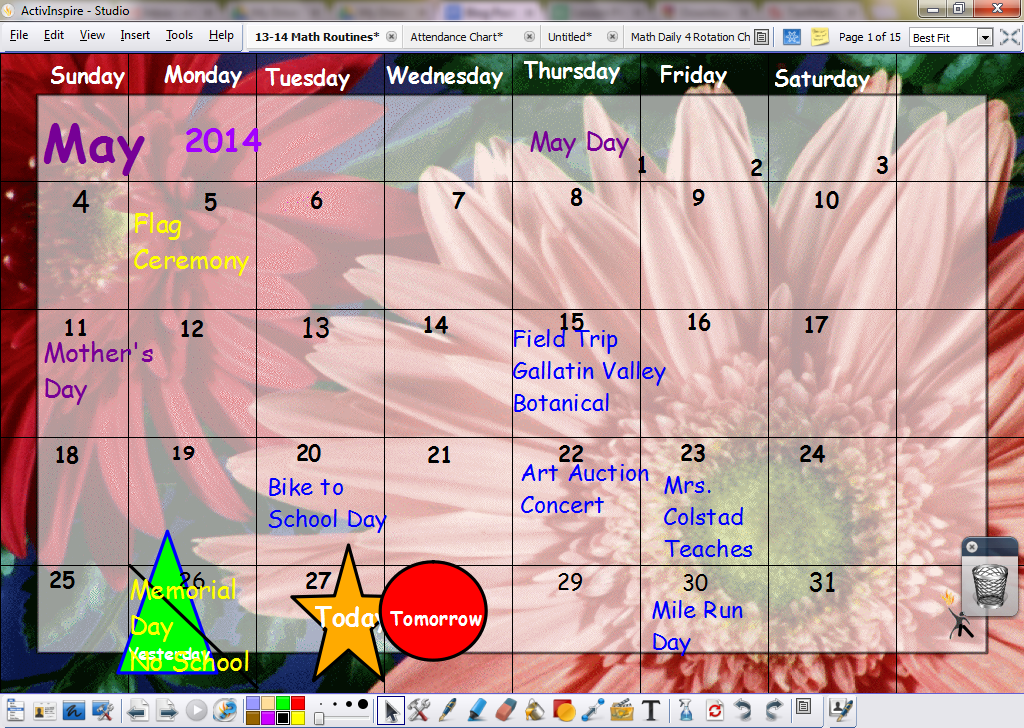
No longer do I have an entire wall covered with a calendar, a number line, plastic bags of coins and base ten blocks. I have one wall calendar for reference during the day and the rest of it lives in the flip chart I made using the Promethean ActivInspire software.  I have one page of the flip chart devoted to each routine, calendar, number of the day, weather, temperature. I assign a student to each job each day. They take the pen and enter their data, I hit save and we move on!  It takes a little time at the start of the year to teach the kids what to do with the pen on each slide. By the end of the year they can run it so well I don’t even need to sit by the computer.

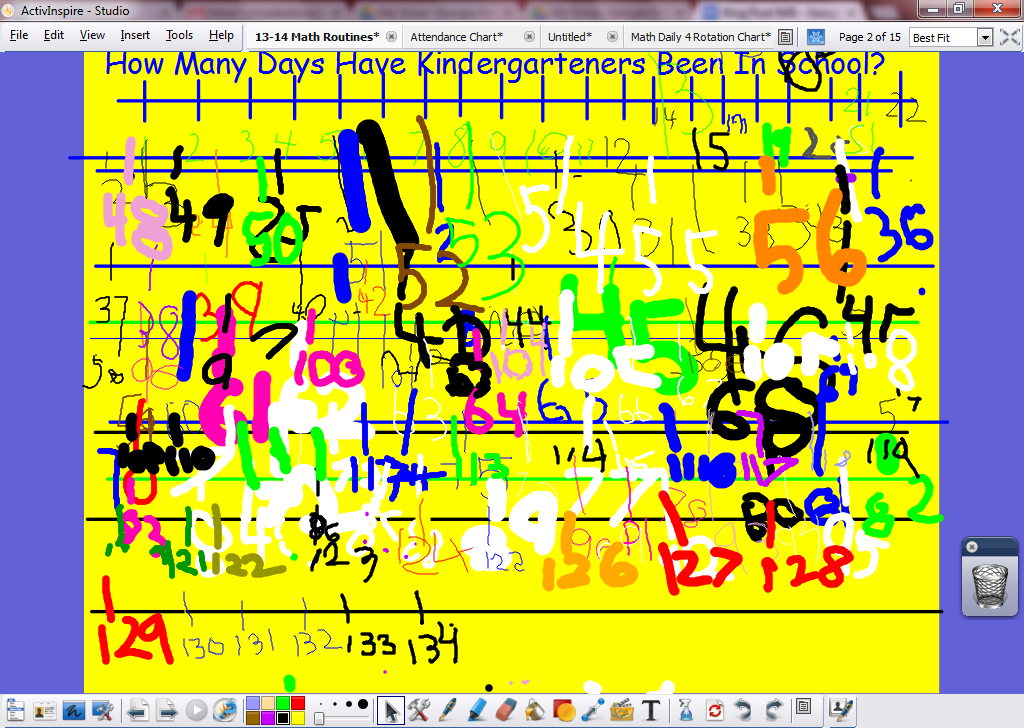
We use this chart to track the number of the day. This is a count for how many days we have been in school. At our school Kindergartners come to school fewer days than first graders so we have two of these screens, one for each grade level.


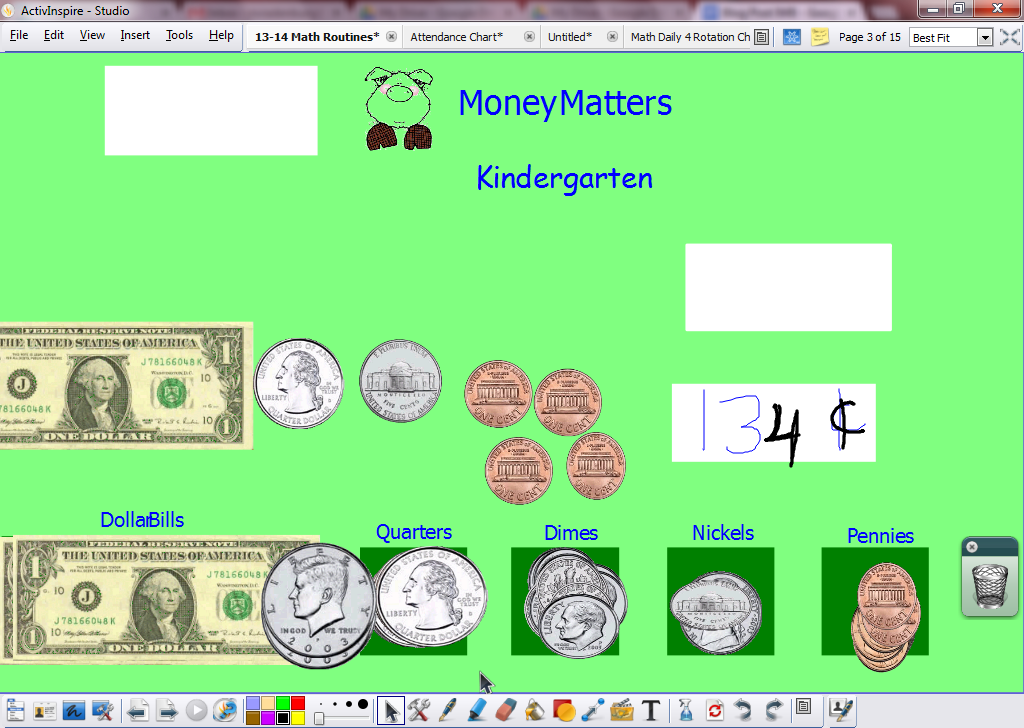
We add a penny each day and make change as needed. This total matches the number of days we have been in school. Here again, Kinders and first graders have separate pages.

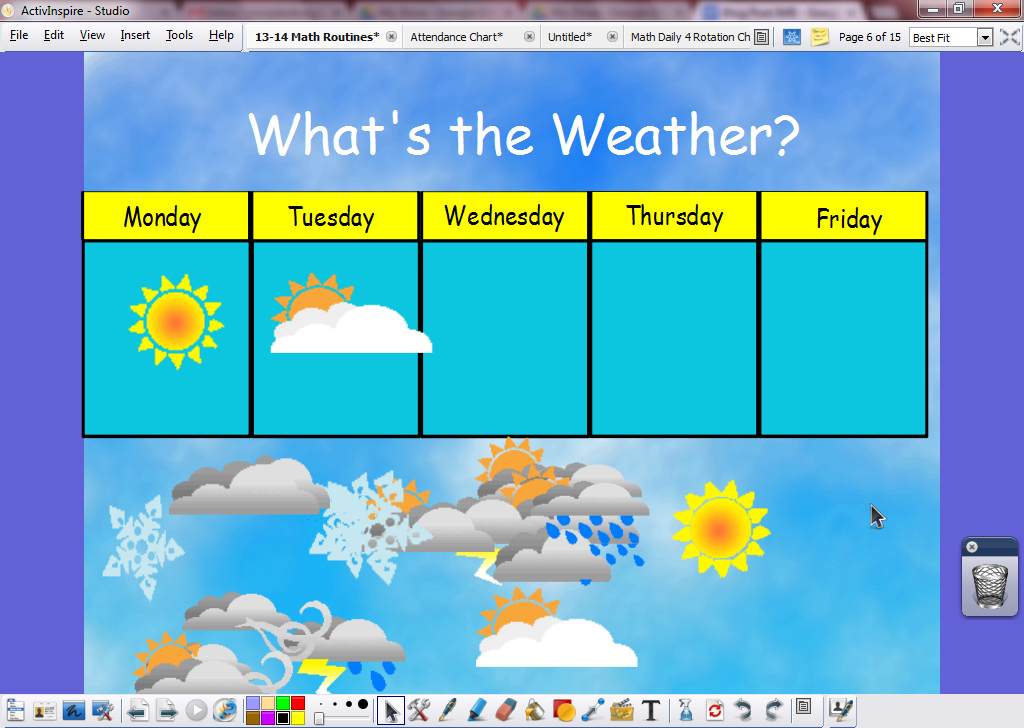
As soon as we flip to this page we sing this song (to the tune of Row, Row, Your Boat) to invite our “weather person” to the board,
“Sun, wind, rain or snow,
What will come our way?
Let’s ask the meteorologist about the weather today!”

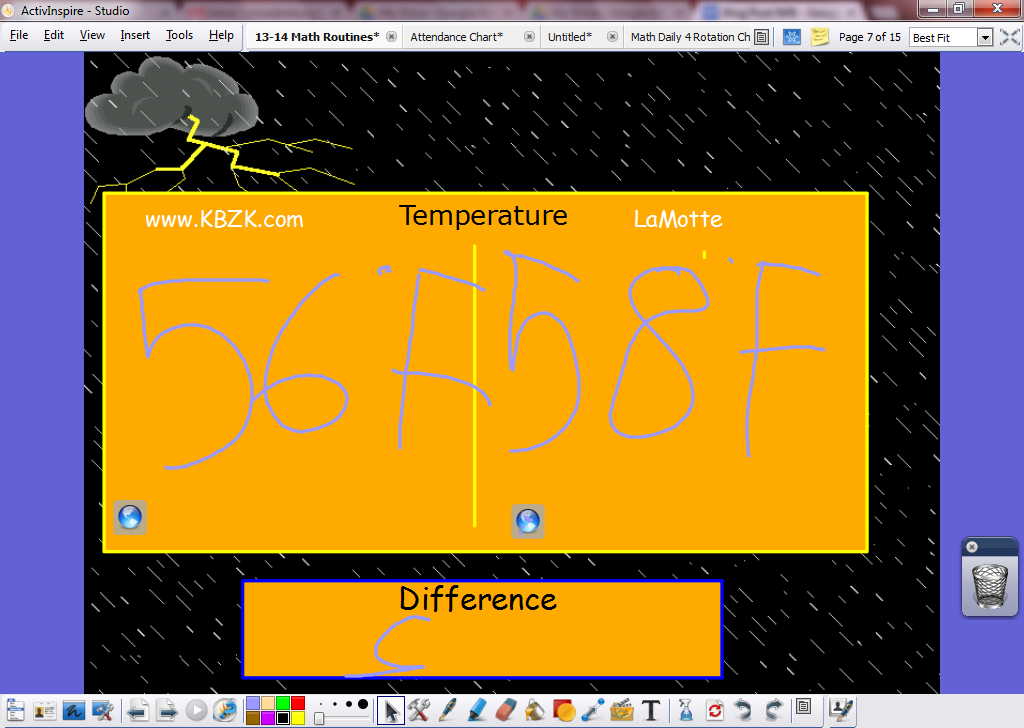
Each of the blue circles holds a link to help us determine the temperature. One takes us to the local news station. The other takes us to a web page that summarizes the weather on our play ground. We have a weather station on the roof of our school. (Thanks to our AMAZING parent group for that one!)  We compare the temperatures and find the difference between the two.

IMG_1136.JPG
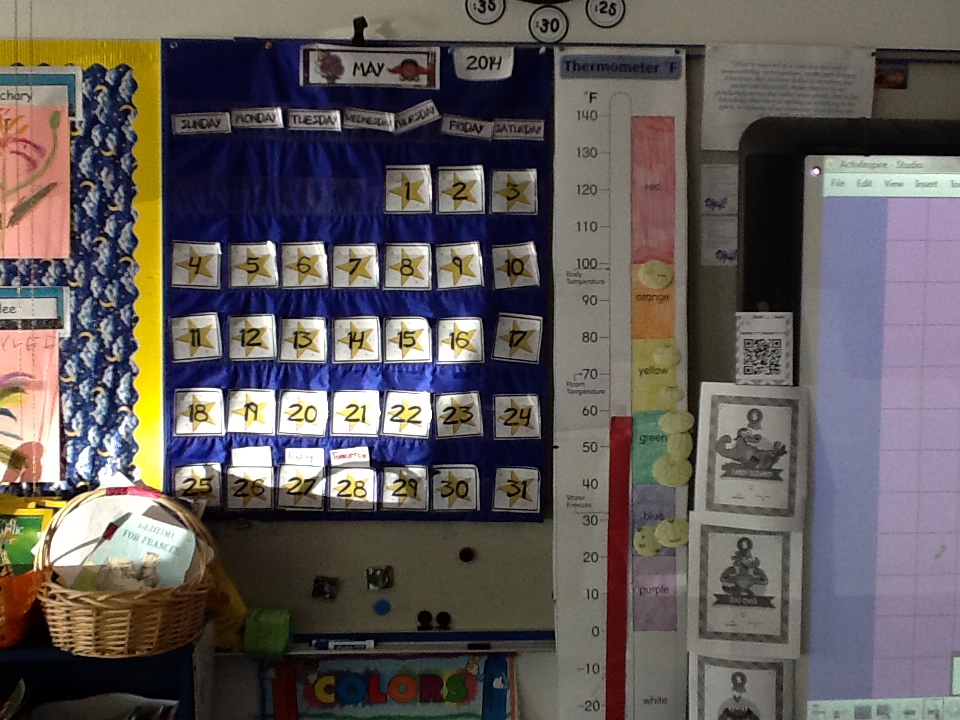
We use the temperature poster to record the temperature on our playground. This poster is from the Everyday Math program for Kindergarten and first grade. The colored bars beside the thermometer match the colored zones we see on weather maps. We track which “temperature zone” we are in each day. Last week there were cheers when we finally entered the “Yellow Zone!” The kids shouted, “We can wear short sleeves!” This is a big deal in Southwestern Montana!
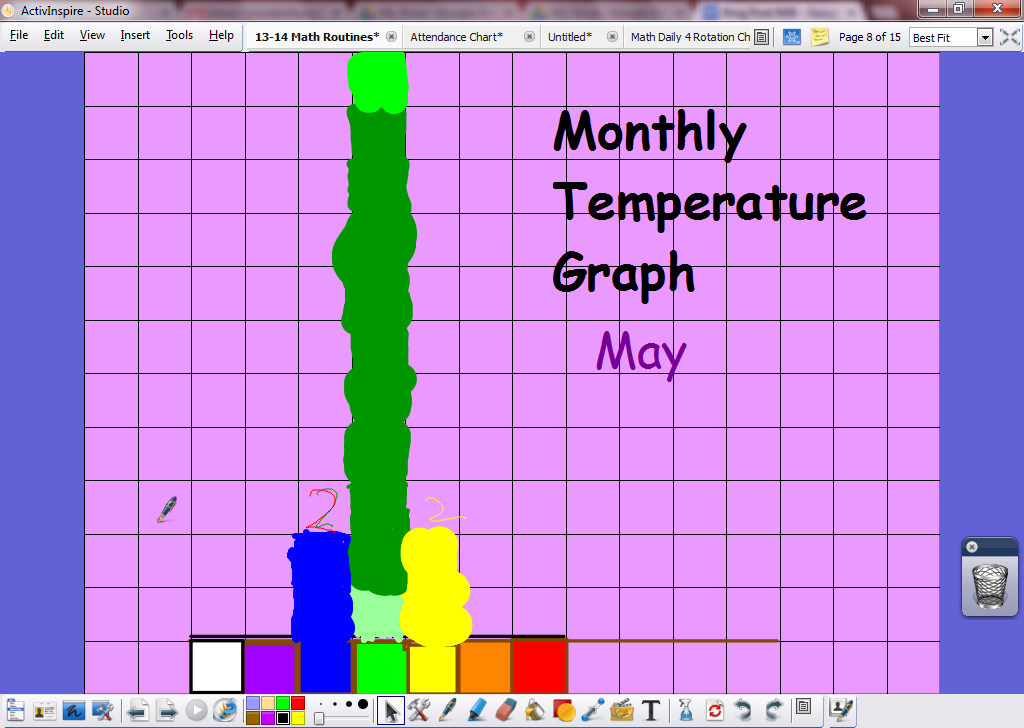
Here is where we graph the temperature zone for each day of the month. At the end of the month we print this page and hang it in the room. We discuss which zone “won” for the month. Can you guess which zone it will be for this month? The printed pages are referred to throughout the year as we talk about the change in seasons. We have discovered this year that the “blue zone” is very common for our area.


2. Word Work
IMG_1351.JPG
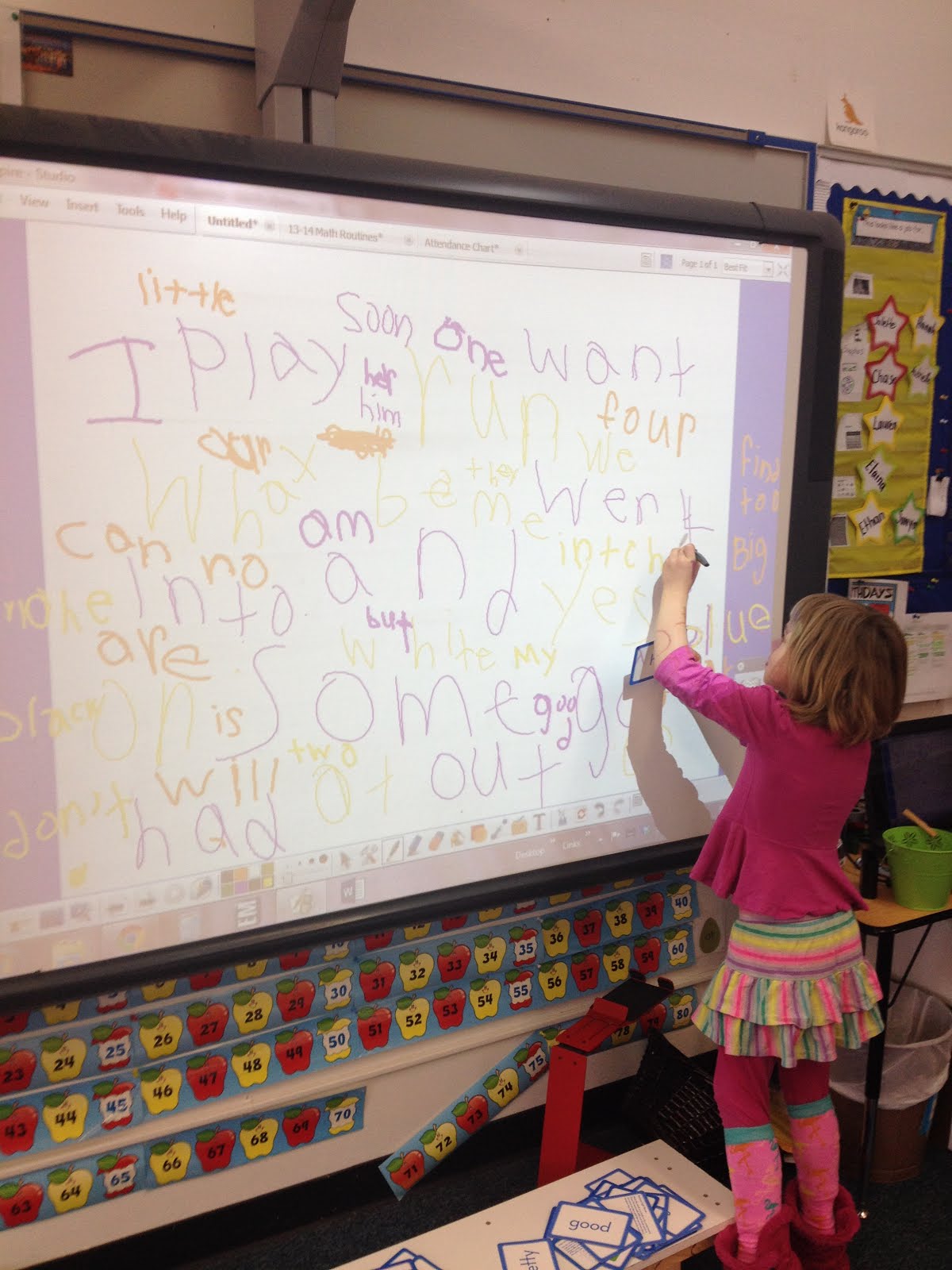
During the Daily 5 Literacy Block students can opt to write words on the Promethean. Back when we had two working pens I could set the “dual user” mode so two students could write words at the same time. Right now, we have just one working pen so we make it work. I keep a pile of sight word flashcards next to the board so the kids can write them. They also look to the right at our word wall and copy words from there. Recently, one of my Kindergarten girls found that she could flip through the picture dictionary and find words she wanted to write. Students have no trouble maintaining their stamina as they write words on the Promethean. They play with the colors and the thickness of the pen and fill the all the white space with as many words as they can.  While this is an activity that could be done on paper with a pencil, I find that the board is much more engaging. They love showing me and their classmates just how many words they can write during a round.

3. IWB Activities

There are many activities on the web featuring free Interactive Whiteboard activities and here are my favorites. All of these activities come from two sites created by PBS. PBS Learning Media and PBS Kids Lab. I use these games with small groups as I introduce them. When I feel the students are comfortable navigating the activity I make it an option during our Math and Reading center rotations.

Use this game (from PBS Learning Media) to teach students how to make predictions and inferences when reading.

Use this game (from PBS Learning Media) to give students practice making connections. They must differentiate between text to text, text to self and text to world. This really solidified this skill in my students.

Use this game (from PBS Kids Lab) to have kids play math games practicing, facts, place value, number recognition, spatial awareness and problem solving.

This Interactive story  from the PBS Kids Lab follows the characters from the popular show Martha Speaks through a lesson in recycling. I used this activity with my students during a unit about Earth’s Natural Resources. We went through the IWB activity and then repurposed empty soup cans using the suggestions from the story.

This is a fun game from the PBS Kids Lab where students can practice counting sets of objects. You can choose from three different levels. I found the third level to provide plenty of challenge for even my high level learners.

4. Pattern Block Designs
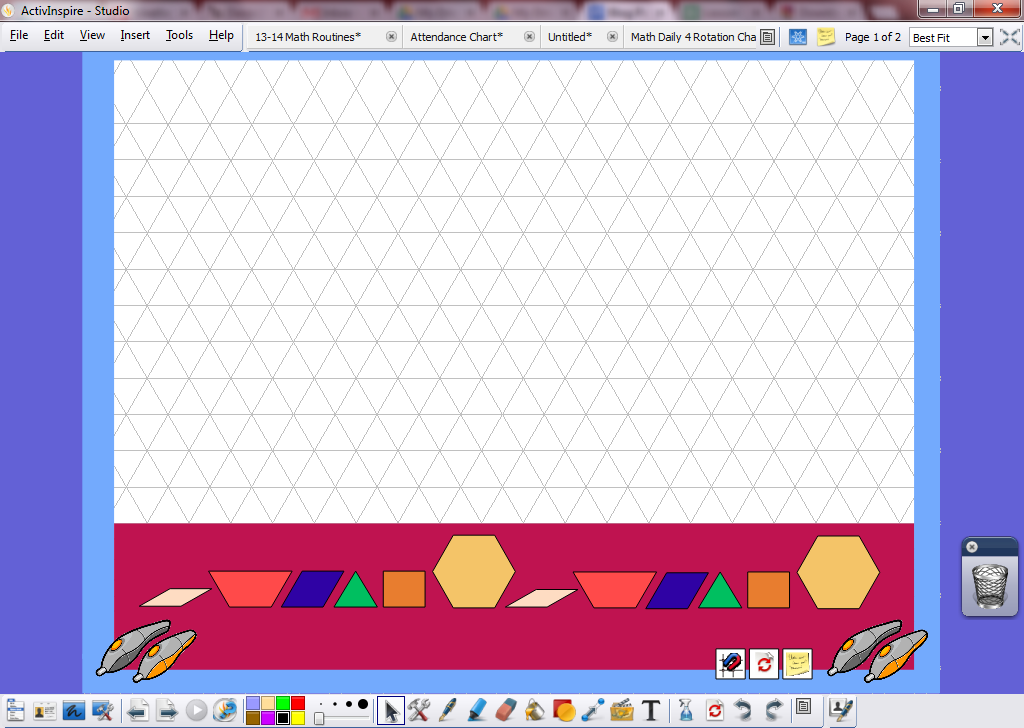
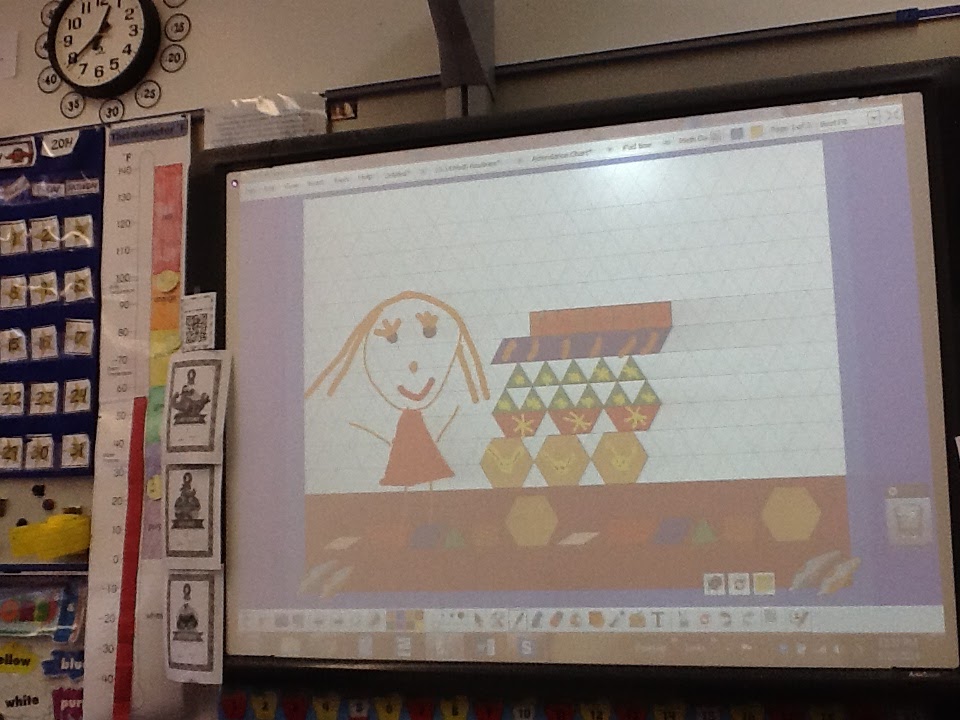
Promethean Planet is the free resource website partnered with my Promethean board. It features a vast selection of free flip charts to be used with the Board. I found this one page flip chart that is a blank grid with pattern blocks below it. Students drag the blocks on to the grid to create pictures. I use this chart as one of the choices students can make during our math workshop. Often students create such elaborate designs they often ask to take a picture of them to post on our class blog. I find that given enough time and the challenge to be more creative than the student who used it before them, students can create some amazing designs. Again, only one student can use the board at this time but most kids get a turn as the week goes on.  Often, students will ask to take a picture of their work with the iPad so they can post it on our class blog. I am not sure when I downloaded this chart from Promethean Planet but I can’t find it anymore. If you want me to email this file to you I can. Email nvradenburg@lamotteschool.com

IMG_1110.JPG
This photo looks a little dim as we were waiting for a new bulb in our projector.

5. Center Rotation Boards

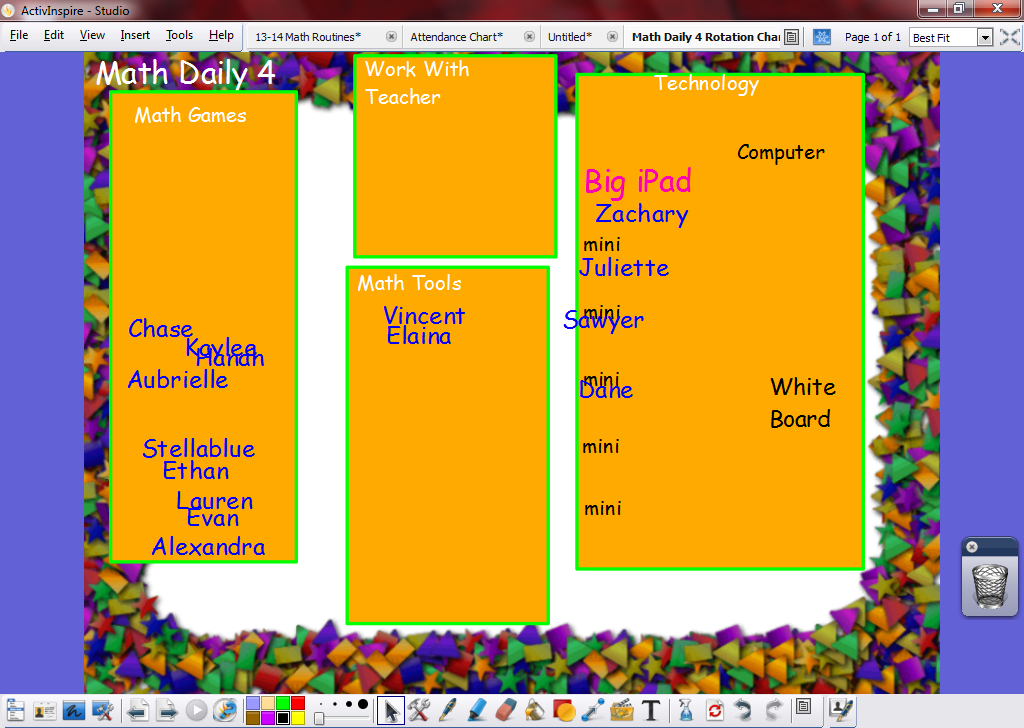
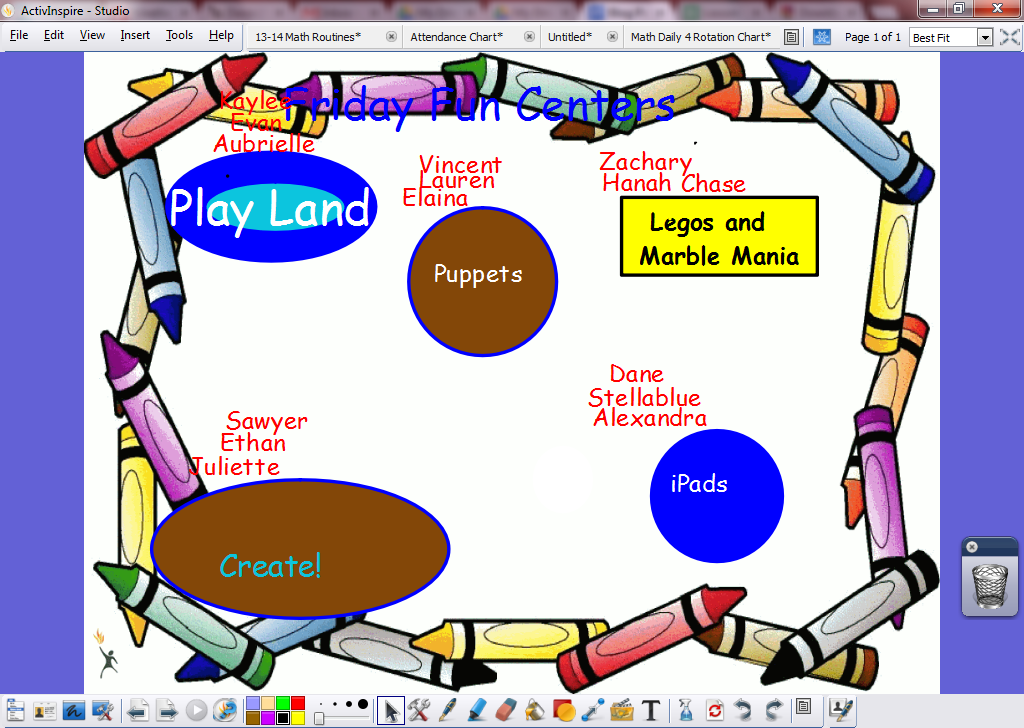
We spend a good portion of our day working in learning centers. There are so many amazing ways to organize the rotation between centers using pocket charts and posters but my favorite so far are the rotation boards I have created using the Promethean. Once again, my room is not cluttered with pocket charts and poster boards. The students and I can move their names to colorful symbols that resemble where they need to go. We use the Promethean for our Math workshop and our weekly Friday Fun Center time. Whenever I have a sub in the room. I usually leave instructions on how to open the flip charts on the computer and the students do the rest!

We use this rotation board for our daily Math Workshop. I usually move the names of student I need to work with and then hand the pen off to the rest of the group. They form a line at the board and quickly put their names in the box for the station they want to visit.

We use this rotation board for our weekly center session, “Friday Fun Centers.” We do FFC every Friday afternoon.  (hence the name) The shapes on the chart resemble the tables where each activity is located. This helps students at the start of the year who are not quite reading on their own.  I group the names so I can move them around the board after each round.

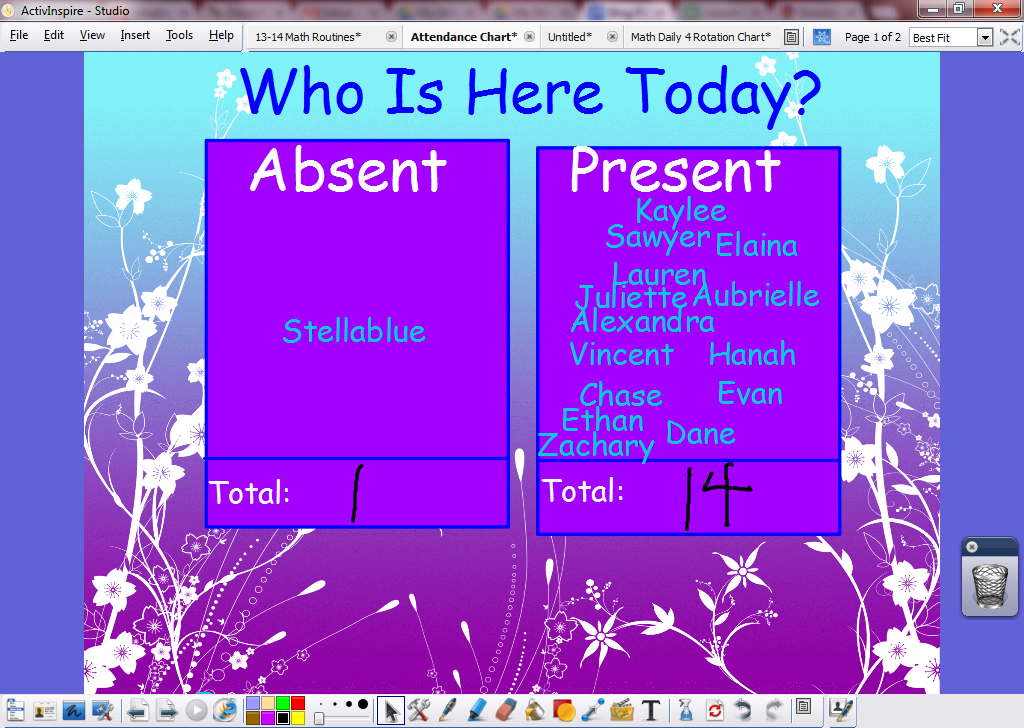
6. Morning Attendance

Students enter the classroom in the morning and move their name into the “Present” box. At our designated “start time” I move the remaining names into the “Absent” box. We decide the number I should write in the “Absent Total” box and then figure out how many are present. At the beginning of the year we count the names in both boxes to get the totals. At this time of year we count the total absent and subtract it from our class total to find out how many are present. If students are tardy we go back to the attendance chart and change our data. It is a wonderful, quick way to talk about adding and subtracting numbers in a real world context that is relevant to students because nothing is more important than who is and isn't at school that day!


IMG_1348.JPG
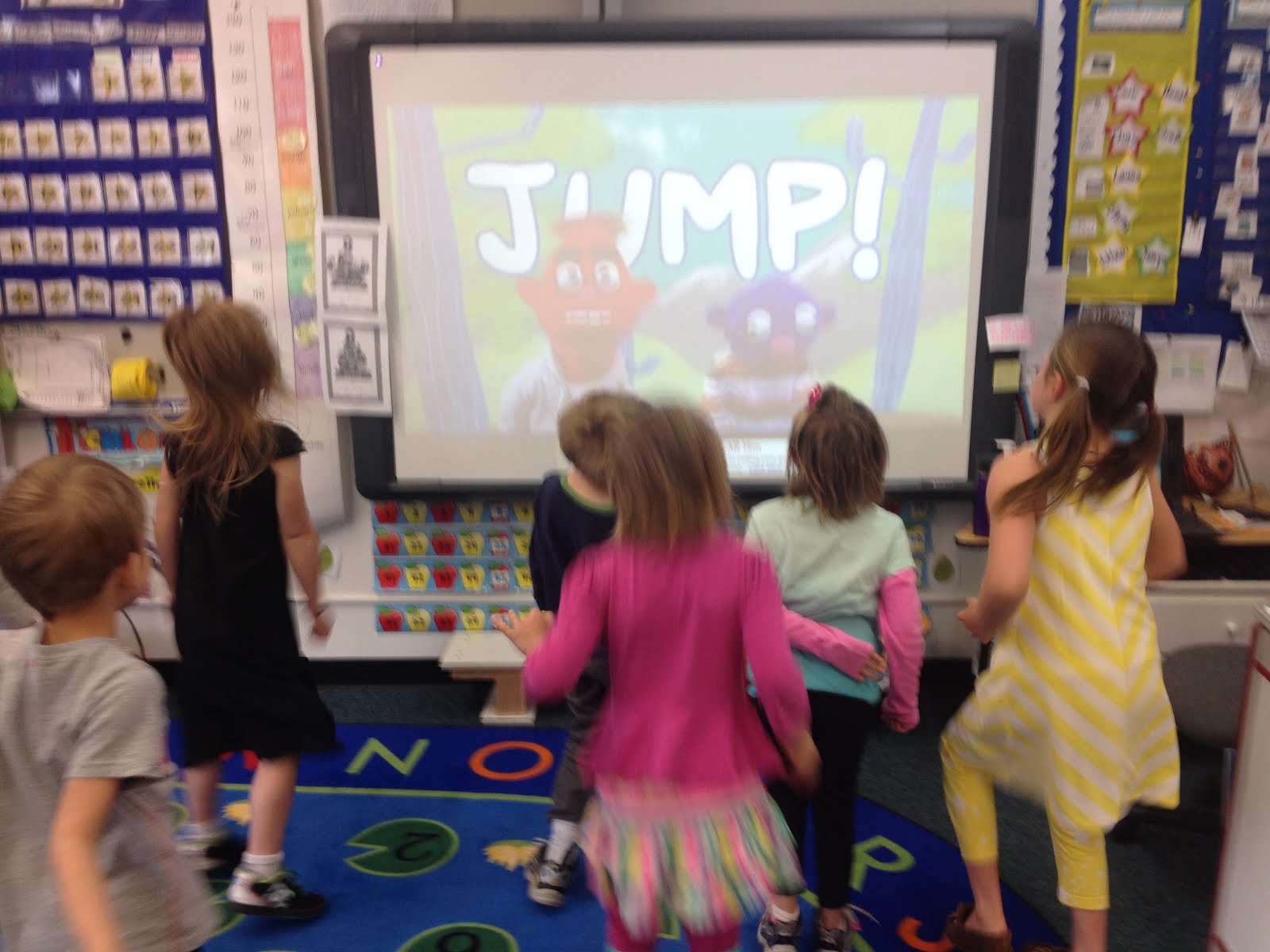
I have blogged about Go Noodle before but I had to include it in this post as well. We use Go Noodle all day long to transition between activities. It simply would not be as fun if we couldn't use the Interactive Whiteboard to do our exercises.  Often when we finish a center rotation I will start Go Noodle. The students are motivated to put things away faster and quieter if they have a reason to get to the meeting area.

Those are my top 7 reasons to love the Interactive Whiteboard! Why do you love yours? Leave me a message in the comments to share your great IWB ideas!